 Image via Wikipedia
 New Homescreen Transition on LauncherPro for Android Phones and Tablets (Photo credit: DanieVDM)
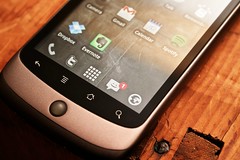 LauncherPro (Photo credit: Johan Larsson)
 Image via Wikipedia
 LauncherPro home screen (Photo credit: markuz)
20-Feb-2012
There are so many launchers available in the
Android Market, and there is no ‘perfect’ candidate that satisfies each and every user’s whims and wants. One would be graphically-enhanced, another functionally-boosted, and the rest are just midway deliveries, half of the functionalities, and half of the graphics.
I was thinking, why not I take the strength of each piece, and put them all in one launcher, and put it up in the Market? Wouldn’t that be the ‘final thing’ for an
android phone launcher?
Definitely not. You see, our individuality is proof that we have our own preferences, and the disagreements, rather than the compatibilities, would be the major focus. What’s best for me only applies to me, and may not be true to others. We like what we like, and we don’t need to explain that.
Having said, I would just be putting up my own observation and judgment on the launchers that I have evaluated.
ADWLauncher/ADWLauncher EX
Customizable, and easy to use. I’m okay with this, but the only problem that I find, comparing with the rest, is the home dock, which only allows 2 apps other than the Home/Apps switch. Or maybe I just didn’t know how to do it… Hey, there’s no manual, as in all the rest. But that the acceptability of an
app is that even without a manual, the average user (where I belong) should be able to navigate and tweak to one’s liking in the minimum time spent. Just like our old friend iPhone… still there?
There, I recommend ADWLauncher EX for those who are looking for an alternative to the phone’s stock launcher.
Regina 3D Launcher
Didn’t have much time to play with this launcher, and even just its icon is already turning me off. And why not? Every other app in the Market, even the very simple ones, are in full color, so what were they thinking when they created the drab and colorless icon? Simplicity? That would kill the cat!
One thing that could be nice is that they don’t have a grid snap. I find that very, very flexible. When adding an app to your
home screen, you can position it anywhere you like within the screen bounds. I didn’t see that anywhere else.
I can’t say much anymore, so I am leaving the decision to the user whether or not to try Regina 3D Launcher.
LauncherPro
Almost within the graphics and performance level of ADWLauncher EX is LauncherPro. The home dock is easily populated with apps of your choosing. And pressing or hitting the Home button spreads out the panels on your screen, where you choose where you want to go – that I find most desirable – since you don’t need to flick and flick and flick, and turn and turn and turn the panels left and right.
Did I like LauncherPro? You bet I did. I used it for as long as I can, customized it as much as I wanted.
But all good things have to come to an end, but I highly recommend LauncherPro, as I would ADWLauncher EX.
SlideScreen
This isn’t really a launcher, but an app to show what you would want to see all in one screen. But that immediately puts up a question, ‘How many?’, since there are many things that we’d want to see, on the average 20 items (basing on my own use of the android phone), any time.
This is yours to try, all at your own risk (Okay, the risk is only losing some time, in exchange to learning something…)
GO Launcher EX
I like this launcher the second best! With so many themes to choose from, and many of them free, with some of the free items coming so close to the paid ones, this is a very, very good choice. Home dock isn’t an issue: you put in as much as you would need; there’s always a limit to what we can do, but this allows as much as I wanted.
In the apps list, I like the horizontal movement, since I would usually read left to right, or right to left; some launchers give you the vertical movement, and well, they have their own reward (and problems)!
You can even adjust the grid size to your liking: 4x4, 4x5, 5x4, 5x5, etc.
What’s more, GO array of apps is a vast array, and there just an app for each and every thing you may be needing and using: GO Dialer, GO
SMS, GO Notification, GO TaskManager, Go, Go, Go!
I may just try it again sometime again (I just saw the Greenscree Theme), and I think I like it.
Highly recommended: Go Launcher EX!
GO Locker EX
I’m not a bird or a reptile, but boy, I was attracted to the 3D Worm Locker, and for this to work properly, you have to set the GO Locker as the home launcher. Works almost seamlessly with you phone, as if you are operating GO Launcher, but I got tired of the worm thing.
If you like it, this is okay. At least better than many of those out there that call themselves home launchers. They don’t even come close!
MXHome Launcher
What do I say about this launcher?
Uninstalled as soon as installed…
SPB Shell 3D
This is what I am using now. Heavy on the graphics, and the only thing that I don’t like, topping the list, is the scroll movement of the apps list: vertical. I would exchange this with Go Launcher EX, if not for the superb graphics. The others that I don’t like, well, maybe somebody else would find them useful, the extra panels of whatever.
This is resource hungry, but I have characterized my
Samsung Galaxy R’s behavior, with its internal 8GB
SD card.
Don’t go beyond 75% of what you have, and this launcher is performing best. All the others, you can use up to about 100MB more than 75% of capacity, before your phone starts its self-reset cycle.
So for me, that was 3GB usage of my 4GB partition, and 50% of the rest (1GB/2GB for the SD and Phone Only partitions). I would have to actually review all the apps that I have installed when the box of many-colored candy was opened up to me, pick those that I don’t use, and uninstall them. I got to free up more than 1GB afterwards – good for the launcher!
Home Manager
Home Manager app comes with Home Switcher, and that made it easy, if not easier, for me, to switch between the home launchers. No need to ‘clear the defaults’ by going to the apps’ setting, etc., etc.
You’d be better off trying out the launchers with this apps as you primary aid.
Other launchers that I haven’t tried:
Gingerbread Launcher
Ks Launcher
Launcher 7
Zeam
Balancer
Nemus Launcher
QuickDesk
HeLauncher
PandaHome
Open Home
Crazy Home Pro
MIUI ROM
Out there, what will you find?
If you will, you can Google ‘best android launchers’ and you would find many, even those that tell you the strengths and weaknesses of the apps, but then again, we all look at one picture with different eyes, and with different perception.
I ask then,
when will we ever unite?


![Reblog this post [with Zemanta]](http://img.zemanta.com/reblog_e.png?x-id=c6afab91-1a8e-42ae-8192-5c7a6cc2b8ec)