Showing posts with label USB. Show all posts

05 March, 2013

Desktop SMS Apps

Deutsch: Micro USB Ladekabel für Mobiltelefone
Deutsch: Micro USB Ladekabel für Mobiltelefone (Photo credit: Wikipedia)
5 March 2013

I have been using mysms and browserTexting apps for some time, and I am satisfied with the performance. Of course, the ride isn’t exactly smooth: sometimes mysms would take a long time to send a message, something that I didn’t encounter with browserTexting apps. However, since I am using the free versions, my free tokens got all used up, and I am already required to make a purchase – something that I am not willing to do.

That sent me scouting for other free desktop SMS apps, and in Google Play, there isn’t a scarcity of these apps; they are aplenty!

Anyway, to cut the long talk short, I found Desktop SMS Apps, and while it requires the desktop UI to be installed, I have no hesitation doing this, downloading the installer, installing the program, and all. I used Jeyo’s Mobile Companion before, when I was using a Dopod that runs on Windows Mobile, and I could say the interface is very familiar to me; the UI of Mobile Companion and Desktop SMS Control are very similar.

Day Trading and Binary Options Signals

I also didn’t get into a lot of trouble configuring the Android phone to link up to the PC, either by WiFi or by USB. But for now and maybe this will be permanent, I will be going for the USB connection. I find that my device goes to sleep after some time of inactivity, and that effectively shuts off WiFi, thereby disconnecting my phone from the PC. I don’t get that using USB; the connection remains active for as long as the USB is connected.

So there you are, sending/receiving SMS from my desktop PC. That’s the basic thing. Having rules to these messages that you receive, and more, these are extra features you get from Desktop SMS Control.

Try it!


Desktop SMS Apps
Enhanced by Zemanta

16 January, 2012

Rooting the LG Optimus SOL

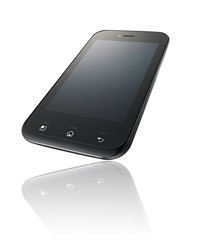
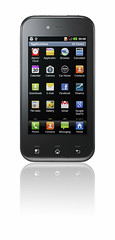
LG전자,  ‘옵티머스 솔’ 글로벌 본격 출시Image by LGEPR via FlickrLG전자,  ‘옵티머스 솔’ 글로벌 본격 출시Image by LGEPR via FlickrLG전자,  ‘옵티머스 솔’ 글로벌 본격 출시Image by LGEPR via FlickrEnglish: A photo of Sony Ericsson Xperia neo 中...Image via Wikipedia16-Jan-2012


Even with my recent success in rooting the Samsung Galaxy R, I thought, of course, with much hesitation, of rooting my daughter’s LG Optimus Sol phone. This time around, the anxiety is more, since the unit is no longer mine. Should something happen, my daughter, not to mention my wife, will give me a good scolding. Well, my wife usually give me a good dose when see sees me doing something that she thinks doesn’t benefit anybody in the house. Don’t we men usually go into this kind of preoccupation?

I’m done with the rooting of the Samsung Galary R phone. Now, I’m off to attempt the rooting of the LG Optimus Sol, E730.

I plugged in the device to my laptop using USB connection. I thought it was the same as the other phone: plug, click, wait, watch, success. But, it was a wait, watch, failure!

What has happened?

So it’s true what they say. A freshman enters high school and is blur all throughout the year, and eventually he learns a lot – but not all. Yet, on the second year, he thinks he knows everything already. So the term ‘sophomoric’.

I thought I knew it all about rooting. But I failed.

I tried many times. In fact, SuperOneClick didn’t work. So I tried searching for other one-click rooting tools. I downloaded and tried UnlockRoot, and it also failed. I also tried DooMLoRD's Easy Rooting Toolkit, but it also failed.

With the use of 3 different one-click rooting tools, and all failing, I was thinking that something else could be the problem. We all think this way when something doesn’t happen the way we want it, don’t we. But when it succeeds, we don’t, right?

Anyway, it took me about 3 days to finally determine that I lack one fundamental requirement for rooting: the USB drivers. And hey, it could not be my entire fault. Plug-and-play dictates that the drivers, not only USB, would be installed when a ‘new’ device is plugged in to a computer – which it didn’t.

Fortunately, I don’t give up that easily. I searched, and searched, and searched, until I found that there is downloadable software from LG: LGMobile Update, and from there, LG PC Suite IV. I was downloading the USB drivers from the LGMobile Update interface, but I found that after installing the LG PC Suite IV software, it did the same, and in auto mode at that. So finally, I got the USB drivers from the LG Optimus Sol device. And all the other drivers specifically designed from the Sol unit.

So what now?

Right after, I made a new attempt to root the device, and guess what. This time, it was a success. Of course, I was inclined to the simpler and more presentable interface of SuperOneClick root-er, so that is what I used, and just like with the Samsung Galary R, I clicked, and waited, and watched, and success!

Next: Sony Ericsson Xperia Neo V. but I haven’t found any effective rooting program yet for this one. I don’t lose hope. I know it will come. In time.

Till then!
Enhanced by Zemanta

31 October, 2011

File System: NTFS or FAT (or FAT32)?

3 USB Flash Drives stacked.Image via Wikipedia31-October-2011

I have not always been so keen on the difference between NTFS and FAT file system. I mean, we apply and implement them in our work PCs and servers, but at home, who cares?

I should. At least now I know why.

Last Friday, I was downloading some worship video songs, and when done, I converted them to .avi format, so I can copy them to a USB drive and play them on the Philips integrated Hi-Fi system equipped with USB drive.

What I did was simply un-use one of my currently plugged USB drives from being a ReadyBoost device. Then I copied over the converted files, unplugged them from my laptop, and plugged them to the Hi-Fi system.

Sure enough, USB is detected, but there isn't any file shown!

I turned off my Hi-Fi system, turned on again, and selected USB input, and it is the same: no files!

I turned to one of the other USB drives still plugged in to my laptop, un-use it from being a ReadyBoost device, copied over the files, unplugged it, then plugged it to the Hi-Fi, and the result is the same!

I verified by copying over the files to other USB drives that are currently used for watching movies, and there they are, the files are showing immediately once USB input is selected.

Then another one was used to verify, an SD card, and the same result was got: the files are being shown and are able to play; these on the SC card and the USB card.

Then I was wondering, "What's the difference?"

Then I remembered, the USB drives that 'don't work' were used as ReadyBoost devices, which were formatted with NTFS file system, while the other USB drive and the SD card, well, they are formatted using FAT/FAT32 file system.

So naturally, I took one of the USB drives that 'don't work', formatted it using FAT32 file system, copied over the same video files, plugged it to the Hi-Fi system, and sure enough, it works!

In case you encounter the same problem, the solution may be the same: FAT or FAT32 file system for your Hi-Fi System, an NTFS for your ReadyBoost. Hey, that is what makes it go past beyond the 4GB limitation.

Till then!

Enhanced by Zemanta

28 August, 2011

Registration Codes for Visual Studio 2010 Express Edition

borderless
borderless (Photo credit: Wikipedia)
Image via WikipediaI have these registration codes generated for my home PC, and I may need them at work, where this code generation is blocked by a firewall.

Others can use the same code, I believe. It is free.

VB 2010 Express:
removed!

VC# 2010 Express:
removed!

VWebDev 2010 Express:
removed!


Happy Visual Studio-ing!


Enhanced by Zemanta

19 April, 2010

Ejecting a thumb drive

The device pictured is a 16GB SanDisk Cruzer M...Image via Wikipedia
This may be a very common item, but then again, i am prompted to post this short article on how to eject a thumb drive. Well, there's no robotic arm to physically eject and disconnect your thumb drive from your USB socket, but this is to electrically disconnect your thumb drive from your computer, so it is "safe" for removal.

Many do a right click on the "Safely Remove Hardware" icon in the system tray. This results to opening up the hardware dialog, and you have to select which USB device to disconnect.

Nothing wrong with this, but try to make a mistake and see what happens.

Instead of doing a right click on the said icon, do a left click, and you are ready to select, if there are many USB devices connected, which particular item to remove.

In most cases, it is only one, and that is your USB thumb drive.

Left click, then click on your thumb drive, and voila! You can pull out your thumb drive!

Isn't that easy?!

Blogged with the Flock Browser
Reblog this post [with Zemanta]

07 August, 2009

An ultra easy way to store and restore

USB Flash DrivesImage via Wikipedia

Aside from thumb drives, flash drives now have a new application: back-up flash drives.

Will it be trustworthy? Or, just like the thinning of chips resulting to thinning of gadgets and devices, will it ever be the ever-emerging trend to have smaller size but larger capacity gadgets?

Ultra Backup USB Flash Drive; read it here.

Reblog this post [with Zemanta]